
What is an HTML table?
An HTML table represents related data in a two-dimensional structure. Its rows and columns establish relationships between headings and values.
A table might connect:
- products with their dimensions and weights
- days with opening and closing times
- maintenance tasks with service intervals
- software versions with supported operating systems
- materials with cost, durability, and maintenance characteristics
These relationships are the reason to use a table. Visual alignment alone is not enough. If the content does not require comparison across rows or columns, headings, paragraphs, or lists may provide a clearer structure.
This distinction is part of a broader principle of semantic HTML: choose an element according to the meaning of the content, not merely the appearance you want to create.
When should a table be used?
A table is appropriate when readers need to identify or compare relationships among multiple data points.
Information that often works well in tables
- technical specifications
- product or material comparisons
- schedules and timetables
- service and maintenance intervals
- pricing information
- compatibility matrices
- measurements and dimensions
- statistical summaries
- financial records
- research results
Information that may need another format
A table is usually not the best choice when the content:
- is primarily narrative
- contains only one short pair of labels and values
- must be read in a specific prose sequence
- uses cells mainly to position images or page components
- becomes harder to understand when separated into fragments
A definition list may work better for a small set of terms and descriptions. A standard list may be clearer for a sequence of items. CSS Grid or Flexbox should generally be used for page layout.
Essential HTML table elements
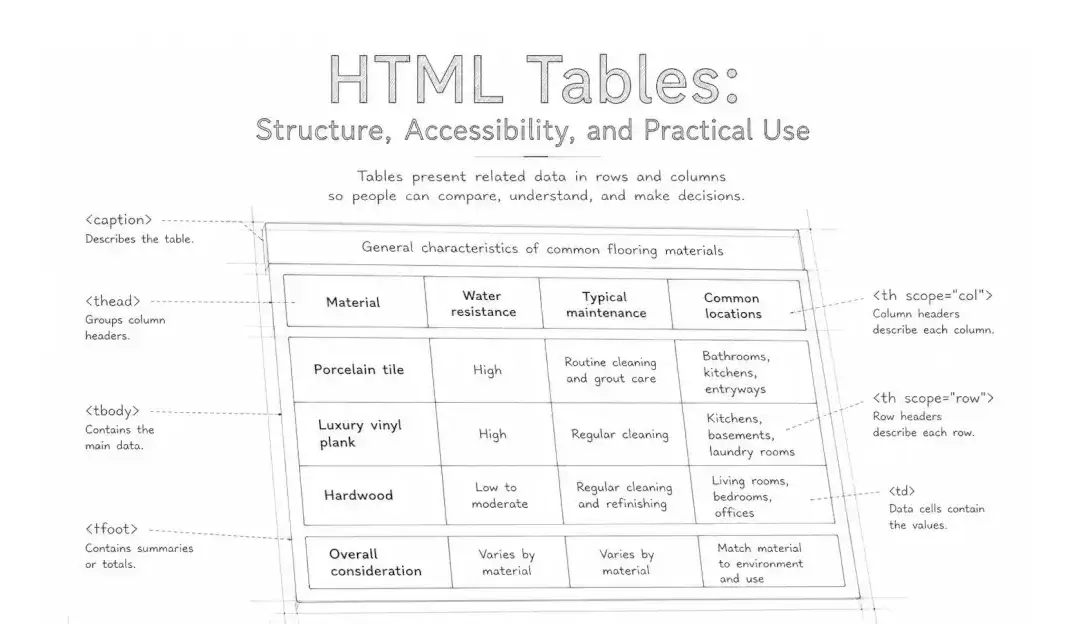
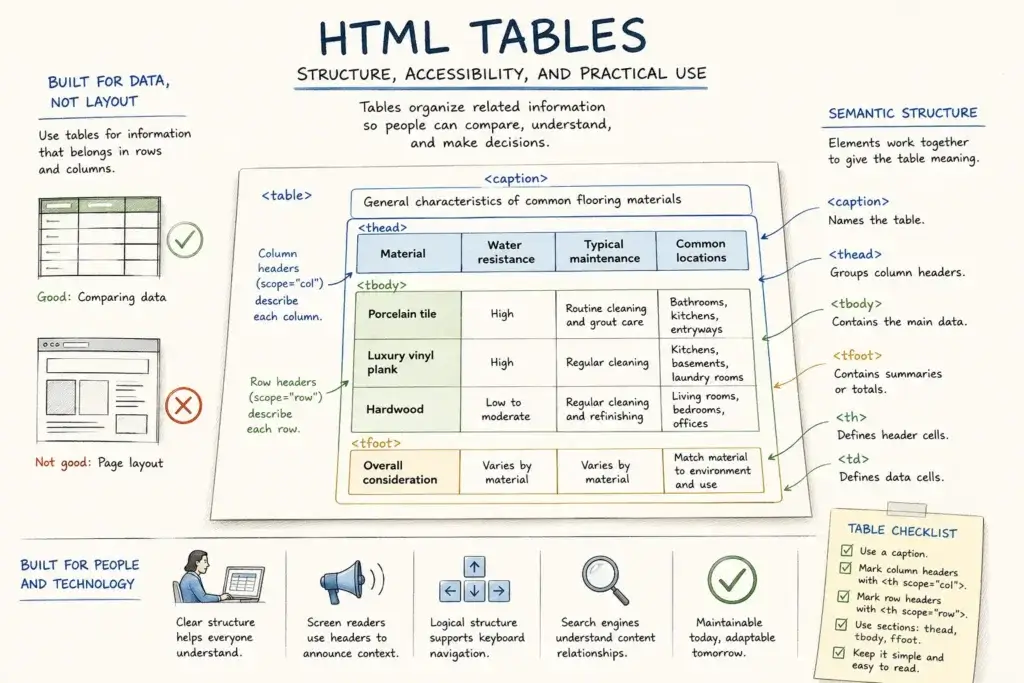
A well-structured table uses HTML elements that identify the table, its sections, its headers, and its data cells.
<table>- Contains the complete table.
<caption>- Provides a visible title or concise description of the table’s purpose.
<thead>- Groups the rows containing column headings.
<tbody>- Groups the table’s primary data rows.
<tfoot>- Optionally groups totals, summaries, or closing information.
<tr>- Defines a table row.
<th>- Defines a header cell for a row, column, or group of cells.
<td>- Defines a data cell.
The <thead>, <tbody>, and <tfoot> elements group related rows. They do not establish header relationships by themselves. Those relationships come from correctly marked <th> elements and, in many tables, the scope attribute.
A basic accessible table example
The following table compares three flooring materials. Its caption identifies the table, while its column and row headers establish the context for each value.
| Material | Water resistance | Typical maintenance | Common locations |
|---|---|---|---|
| Porcelain tile | High | Routine cleaning and grout care | Bathrooms, kitchens, and entryways |
| Engineered hardwood | Varies by product | Dry cleaning methods and spill management | Living rooms, bedrooms, and hallways |
| Luxury vinyl plank | Often high | Routine sweeping and damp cleaning | Kitchens, basements, and general living areas |
The underlying HTML is straightforward:
<table>
  <caption>General characteristics of common flooring materials</caption>
  <thead>
    <tr>
      <th scope="col">Material</th>
      <th scope="col">Water resistance</th>
      <th scope="col">Typical maintenance</th>
      <th scope="col">Common locations</th>
    </tr>
  </thead>
  <tbody>
    <tr>
      <th scope="row">Porcelain tile</th>
      <td>High</td>
      <td>Routine cleaning and grout care</td>
      <td>Bathrooms, kitchens, and entryways</td>
    </tr>
  </tbody>
</table>
The first cell in each data row is a row header rather than an ordinary data cell. This makes the material name the identifying header for the remaining values in that row.
How to make HTML tables accessible
Visual borders and bold text can make a table appear organized, but appearance does not communicate the full structure to assistive technologies. Accessible tables depend on meaningful markup, readable content, and usable interaction.
Provide a useful caption
A <caption> helps readers identify what a table contains before navigating its cells. The caption should be concise and specific.
A nearby paragraph can provide a longer explanation, including the source of the data, applicable dates, limitations, or instructions for interpreting the values.
Use real header cells
Use <th> for cells that identify a row or column. Do not rely on bold styling applied to <td> elements. A visually bold data cell remains a data cell in the document structure.
Define header scope
For simple tables, scope="col" identifies a column header and scope="row" identifies a row header. This helps assistive technologies associate data cells with the correct headers.
Tables with grouped or multi-level headings may also use scope="colgroup" or scope="rowgroup". Highly complex tables sometimes require explicit id and headers relationships, although simplifying the table is often preferable when possible.
Keep headings concise and specific
Headers are repeated as users move through a table with some screen readers. Clear labels such as “Service interval” or “Maximum weight” are more useful than vague headings such as “Information” or “Details.”
Explain abbreviations and symbols
Unfamiliar abbreviations, units, icons, and symbols should be defined. Do not assume that color, punctuation, or an icon will communicate the same meaning to every reader.
Do not rely on color alone
Color can reinforce categories or status, but it should not be the only way those distinctions are presented. Include text labels or another perceivable indicator.
Identify unavailable or inapplicable values
An empty cell can be ambiguous. Depending on the data, use a clear value such as “Not available,” “Not applicable,” or “None” rather than leaving readers to infer why a cell is blank.
Preserve readable text
Tables still need sufficient contrast, readable type, visible keyboard focus, and understandable link text. These concerns are part of the wider accessibility practices discussed in Understanding WCAG.
Responsive tables on smaller screens
Wide tables can extend beyond a phone or narrow browser window. Responsive treatment should preserve the relationships in the data rather than merely forcing every column into the available width.
Allow horizontal scrolling when necessary
One common approach is to place the table inside a container with horizontal overflow:
.table-scroll {
  max-width: 100%;
  overflow-x: auto;
  -webkit-overflow-scrolling: touch;
}
This preserves the table’s native structure while allowing readers to move across it. If the scrolling region can receive keyboard focus, give it an accessible label and ensure its focus indicator remains visible.
Avoid unreadably small text
Shrinking text until a large table fits on a small screen may technically prevent overflow, but it can make the information difficult to read and operate. Horizontal scrolling is often more usable than excessive compression.
Consider whether the table can be simplified
Some tables contain columns that are useful only in specialized contexts. A focused table, a separate detailed view, or multiple smaller tables may be easier to understand than one very wide structure.
Use transformed mobile layouts carefully
Some designs convert each row into a card-like block on small screens. This can work when labels are repeated clearly and the source order remains meaningful. However, changing table elements to generic block containers can weaken or obscure the original relationships.
Responsive styling should be tested visually, with a keyboard, and with relevant assistive technologies. A mobile layout is not successful merely because it fits within the viewport.
Common HTML table mistakes
Using tables for page layout
Table-based layouts were common before modern CSS. They remain difficult to maintain and can create confusing reading and navigation orders. Use CSS Grid, Flexbox, and other layout methods for page structure.
Omitting table headers
Without properly marked headers, users may encounter values without enough context to understand what they represent.
Using visual formatting instead of semantic markup
Bold text, background colors, and borders do not replace <caption>, <th>, and appropriate header relationships.
Placing long narrative content inside cells
Tables fragment prose into isolated regions. If a cell needs several paragraphs to explain an idea, the content may belong in a separate section linked or referenced from the table.
Creating overly complex headers
Merged cells and multiple levels of headings can be appropriate, but they increase the cognitive and technical complexity of a table. If readers must repeatedly decode the structure, consider dividing the information into smaller tables.
Removing native table semantics unnecessarily
A native HTML table already communicates its role. Adding role="table" to a standard <table> is normally unnecessary. Replacing native elements with generic containers and ARIA roles also creates more opportunities for incomplete or inconsistent behavior.
Making sortable headings without proper controls
If a column can be sorted, the interactive control should be keyboard accessible and its state should be communicated. A button inside the header cell is generally clearer than making the entire cell behave like an undocumented control. The active sorted column can use aria-sort="ascending" or aria-sort="descending" as appropriate.
Tables, semantics, and information retrieval
A table expresses that information is relational rather than merely sequential. Headers establish categories, rows group related records, and cells contain values within those relationships.
This structure can help browsers, accessibility tools, search systems, and other software interpret the content. It does not guarantee a particular search result, featured presentation, or AI-generated answer. The quality and context of the underlying information still matter.
Important data should not be placed in a table without explanation. Introduce the table, identify what it measures, state relevant dates or units, and describe limitations that may affect interpretation. A table should support understanding rather than act as an isolated block of values.
This relationship between document structure and machine interpretation is explored further in AI retrieval and semantic HTML and semantic HTML and information relationships.
HTML table checklist
Before publishing a table, review the following questions:
- Does the information naturally belong in rows and columns?
- Does the table have a clear and useful caption?
- Are all row and column headers marked with
<th>? - Are header relationships clear through
scopeor another appropriate method? - Are units, abbreviations, symbols, and time periods explained?
- Can readers understand unavailable or inapplicable values?
- Does the table remain usable at increased text sizes?
- Can narrow-screen users reach every column without losing context?
- Are keyboard focus and interactive controls visible and understandable?
- Is color supported by text or another meaningful indicator?
- Would dividing the information into smaller tables improve clarity?
- Has the table been reviewed with accessibility and real reading conditions in mind?
Frequently asked questions about HTML tables
Should every HTML table have a caption?
A visible caption is generally useful because it identifies the table’s subject. If the surrounding heading already provides the same information, authors should still evaluate whether a caption would improve navigation and context. Avoid captions that merely repeat nearby text without adding clarity.
Should tables be used for website layouts?
No. HTML tables should represent tabular data. CSS Grid, Flexbox, and other CSS layout tools are better suited to arranging page regions, cards, forms, and other interface components.
Are HTML tables bad on mobile devices?
No. Tables can work well on mobile devices when their content is focused and their responsive treatment preserves the relationships between headers and values. Wide tables may require horizontal scrolling, simplification, or carefully designed alternate views.
Do HTML tables improve SEO?
A properly structured table can make relational information clearer to readers and software, but it is not a ranking shortcut. Use a table when it is the most accurate and accessible structure for the information.