

The Accessibility Tree is a browser-generated representation of a webpage that assistive technologies can understand. While sighted users may experience a page through layout, color, spacing, animation, and visual hierarchy, screen readers and other assistive tools rely on a more structured version of the page. That structured version is the Accessibility Tree.
It is built from the page’s HTML, influenced by CSS and JavaScript, and exposed through browser accessibility APIs. For website owners, developers, designers, and SEO professionals, understanding the Accessibility Tree helps explain why clean semantic HTML matters so much for modern websites.
What Is the Accessibility Tree?
The Accessibility Tree is a simplified, meaningful version of a webpage created by the browser for assistive technologies. It describes the parts of the page that users can perceive, navigate, or interact with through tools such as screen readers, voice control software, switch devices, and other accessibility technologies.
A useful way to think about it is this:
- The HTML provides the source structure.
- The DOM is the browser’s live document model.
- The rendered page is what users visually see on screen.
- The Accessibility Tree is the meaningful navigation map assistive technologies use.
The Accessibility Tree does not usually contain every visual detail. It focuses on information that helps a user understand and operate the page: headings, links, buttons, form fields, images with alternative text, tables, landmarks, selected states, expanded states, disabled controls, and similar meaningful objects.
Two webpages can look nearly identical and still expose very different Accessibility Trees. That is why accessibility cannot be judged by visual design alone.
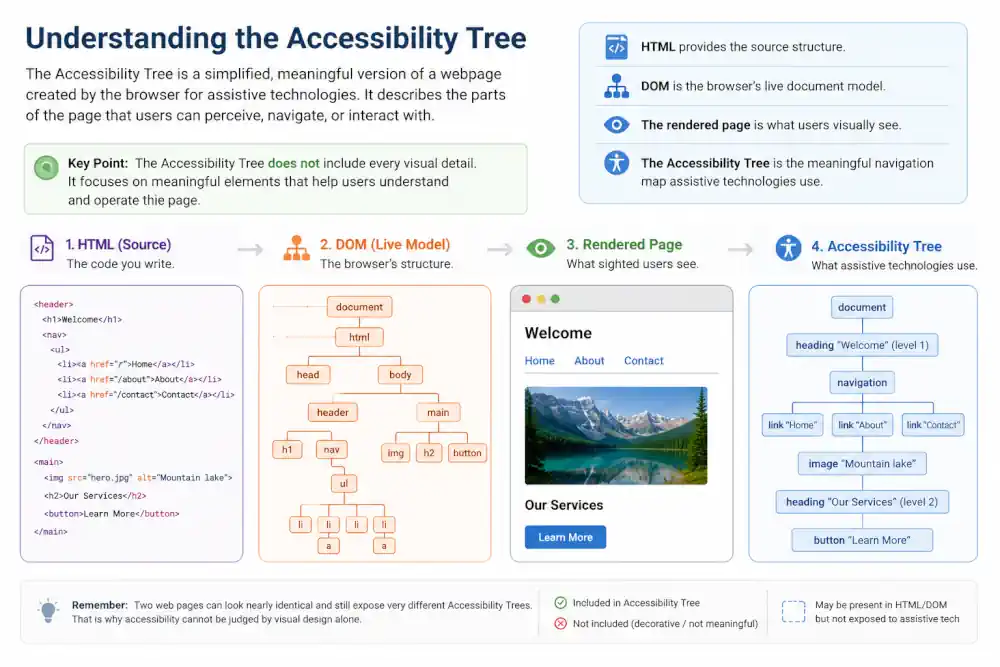
Accessibility Tree vs. DOM
The DOM, or Document Object Model, is the browser’s structured representation of the webpage. It includes elements, text nodes, attributes, and the live changes made by JavaScript.
The Accessibility Tree is derived from the DOM, but it is not the same thing.
The DOM may contain many elements that do not matter to assistive technology, such as layout wrappers, decorative containers, or hidden elements. The Accessibility Tree filters and interprets the page into a more usable structure.
For example, a page may include several nested <div> elements to support layout:
<div class="card">
  <div class="card-header">
    <div class="title">Service Options</div>
  </div>
</div>
Visually, this might look like a heading. But unless the markup communicates that meaning, the Accessibility Tree may only expose generic text. A screen reader may not treat it as a heading, and users may not be able to navigate to it using heading shortcuts.
Compare that with semantic HTML:
<section>
  <h2>Service Options</h2>
</section>
Here, the browser can expose a clear heading in the Accessibility Tree. The visual result may be similar, but the accessible structure is much stronger.
In simple terms: the DOM is the browser’s full working model of the page. The Accessibility Tree is the meaningful subset and interpretation assistive technologies rely on.
How Browsers Build the Accessibility Tree
Browsers create the Accessibility Tree by interpreting the page’s HTML, CSS, JavaScript, and accessibility-related attributes. This process is handled by the browser and then exposed to the operating system through accessibility APIs.
The exact implementation varies between browsers and platforms, but the general process is similar:
- The browser parses the HTML and builds the DOM.
- CSS is applied to determine visual presentation and visibility.
- JavaScript may change the DOM, add interactivity, or update content.
- The browser determines which elements are meaningful for accessibility.
- The browser assigns roles, names, properties, and states.
- The resulting Accessibility Tree is exposed to assistive technologies.
This means accessibility is not only about what appears on screen. It is also about what the browser can communicate to assistive tools.
If a button is built with a native <button> element, the browser already understands its role. If the same button is built with a generic <div>, the browser may not understand it as a button unless additional keyboard behavior and ARIA markup are carefully added.
That difference matters because assistive technologies do not simply “look” at the page. They receive structured information from the browser’s accessibility layer.
What Information Is Included in the Accessibility Tree?
The Accessibility Tree usually includes information that helps users understand what something is, what it is called, and what state it is currently in.
Three important concepts are:
- Role: What the element is, such as a button, link, heading, checkbox, text field, image, list, table, or navigation landmark.
- Accessible name: The label or name assistive technologies announce, such as “Search,” “Submit form,” or “Main navigation.”
- State or property: Current information about the element, such as expanded, collapsed, checked, selected, disabled, required, or invalid.
For example, a properly labeled checkbox may be exposed with:
- Role: checkbox
- Name: Subscribe to updates
- State: checked or unchecked
That information allows a screen reader user to understand the control and interact with it.
Common Page Elements in the Accessibility Tree
Many common HTML elements have built-in meaning that browsers can expose automatically:
- Headings: <h1> through <h6> communicate page structure and allow heading navigation.
- Landmarks: Elements such as <main>, <nav>, <header>, <footer>, and <aside> help users move through page regions.
- Buttons: <button> elements communicate interactive actions.
- Links: <a href=””> elements communicate navigation destinations.
- Forms: Inputs, labels, fieldsets, legends, and validation states help users understand and complete forms.
- Lists: <ul>, <ol>, and <li> communicate grouped items.
- Tables: Table elements can communicate relationships between headers and data cells when used correctly.
- Images: Images with useful alt text can communicate meaning; decorative images can be hidden from assistive technology.
These are not just code preferences. They shape the structure assistive technologies receive.
Why Semantic HTML Improves the Accessibility Tree
Semantic HTML means using HTML elements according to their meaning, not only their appearance. A heading should be marked up as a heading. A button should be marked up as a button. A list should be marked up as a list.
This matters because browsers already know how to expose native semantic elements to the Accessibility Tree. Native HTML gives the browser reliable information without requiring extra instructions.
For example:
<button>Open menu</button>This gives the browser a clear role: button. It also gives users expected keyboard behavior by default.
By contrast:
<div class="button">Open menu</div>This may look like a button, but it is not a button semantically. Without extra work, it may not be focusable by keyboard, may not be announced as a button, and may not behave as users expect.
Semantic HTML is one of the strongest foundations for accessibility because it improves the page before additional tooling or ARIA is considered. It also supports broader website quality, including maintainability, testing, and clearer information architecture.
Why Visual Appearance Does Not Always Match Accessibility
A visual page and its Accessibility Tree can diverge in several ways. This is one of the most important mental models for accessibility beginners.
A page might visually show:
- a large bold line of text that looks like a heading, but is not coded as a heading;
- a clickable card that looks like a link, but is not exposed as a link;
- a custom dropdown that looks interactive, but does not communicate expanded or collapsed state;
- an icon button that has no accessible name;
- content hidden visually but still announced by a screen reader;
- content visible on screen but removed from the Accessibility Tree.
Visual design communicates through appearance. Assistive technology depends on structure, labels, roles, and states.
This does not mean visual design is unimportant. It means visual design and accessible structure need to agree with each other.
Hidden Content and the Accessibility Tree
Some content is included in the Accessibility Tree, and some content is removed. The distinction depends on how the content is hidden or marked up.
Common examples include:
- display: none; usually removes content from both visual display and the Accessibility Tree.
- visibility: hidden; usually hides content visually and removes it from accessibility exposure.
- hidden attribute: removes content from rendering and from the Accessibility Tree.
- aria-hidden=”true”: hides content from assistive technologies while it may remain visually visible.
- Visually hidden utility classes: can hide content visually while keeping it available to screen readers, when implemented correctly.
Each approach has a different purpose. For example, a decorative icon may be hidden from assistive technology so it does not create noise. But hiding meaningful text or interactive controls can make a page difficult or impossible to use.
Care is especially important with aria-hidden="true". If it is applied to a container that includes focusable elements, keyboard users may still reach controls that screen readers cannot properly describe. That creates a confusing mismatch between keyboard behavior and accessibility information.
ARIA and Common Mistakes That Affect the Accessibility Tree
ARIA, or Accessible Rich Internet Applications, can add accessibility information when native HTML is not enough. It can define roles, labels, relationships, and states for more complex interface patterns.
ARIA is powerful, but it can also cause problems when used incorrectly. A common accessibility principle is: use native HTML first, and use ARIA only when needed.
ARIA can affect the Accessibility Tree by changing what role an element has, what name it exposes, whether something is hidden, or what state is announced.
Helpful ARIA Examples
aria-labelcan provide an accessible name for an icon-only button.aria-expandedcan communicate whether a menu or disclosure is open.aria-describedbycan connect a form field to helper text or error text.aria-livecan announce dynamic updates when used carefully.
Common ARIA Mistakes
- Adding
role="button"to a <div> without adding keyboard support. - Using
aria-labelthat does not match the visible label or user expectation. - Hiding meaningful content with
aria-hidden="true". - Using ARIA roles that conflict with native HTML semantics.
- Forgetting to update
aria-expanded,aria-selected, or similar states when the interface changes. - Creating custom widgets when native elements would work better.
Incorrect ARIA can create an Accessibility Tree that is less accurate than the original HTML would have been. This is why ARIA should be tested, not assumed.
Dynamic Updates Through JavaScript
Modern webpages often change after they load. JavaScript may open menus, validate forms, insert search results, update shopping carts, expand accordions, or display alerts.
When JavaScript changes the page, the Accessibility Tree may also need to change. If a menu opens visually, the Accessibility Tree should communicate that the menu is available and that its expanded state has changed. If a form error appears, assistive technology should be able to perceive the error and its relationship to the relevant field.
Dynamic accessibility depends on both structure and timing. Content that appears visually may not be useful to a screen reader user if focus does not move appropriately, if the update is not announced, or if the changed state is not reflected in accessible properties.
For example, an accordion button should usually communicate whether its panel is expanded or collapsed:
<button aria-expanded="false" aria-controls="shipping-info">
  Shipping information
</button>

<div id="shipping-info" hidden>
  Shipping details go here.
</div>
When the panel opens, JavaScript should update both the visual state and the accessibility state:
aria-expandedshould change fromfalsetotrue.- The controlled content should become available if it is intended to be read.
- Keyboard interaction should remain predictable.
The goal is not to make the Accessibility Tree artificially complex. The goal is to keep the accessible structure aligned with the interface users are actually operating.
How Developers Can Inspect the Accessibility Tree
Modern browsers include tools for inspecting accessibility information. These tools help developers see how a browser exposes names, roles, states, and relationships.
Common places to inspect accessibility information include:
- Chrome DevTools: The Elements panel includes an Accessibility pane that can show computed role, name, properties, and the accessibility tree.
- Firefox Developer Tools: Firefox includes an Accessibility panel for inspecting accessible objects and relationships.
- Safari Web Inspector: Safari includes accessibility inspection features, especially useful when testing Apple platform behavior.
- Browser extensions: Tools such as axe DevTools and WAVE can identify many common accessibility issues.
- Screen reader testing: Tools are helpful, but testing with actual assistive technology can reveal issues automated checks miss.
Inspection is useful because it shows what the browser is actually exposing, not just what the developer intended.
When testing, developers can ask:
- Does this element have the correct role?
- Does it have a clear accessible name?
- Are states such as expanded, selected, checked, disabled, required, or invalid accurate?
- Can keyboard users reach and operate the control?
- Does the heading structure make sense?
- Are landmarks present and useful?
- Are decorative elements removed from assistive technology when appropriate?
- Are meaningful images described with useful alternative text?
Accessibility testing works best as part of regular website quality review, not only as a final checklist. The Accessibility Tree is one of the clearest places to see whether the page’s structure is being communicated well.
Common Accessibility Tree Problems
Many accessibility issues are not caused by unusual edge cases. They often come from ordinary development patterns that prioritize visual appearance over meaningful structure.
Common problems include:
- Generic containers used as controls: A <div> or <span> may look clickable but lack button or link semantics.
- Missing labels: Form fields and icon buttons may have no accessible name.
- Incorrect heading structure: Headings may be skipped, used for styling only, or replaced with non-heading elements.
- Unclear link text: Repeated links such as “click here” or “learn more” may be confusing out of context.
- Decorative images announced unnecessarily: Icons or background-like images may add noise when not hidden properly.
- Meaningful images without alt text: Users may miss important information.
- Stale ARIA states: A component may visually open while still being announced as collapsed.
- Focus order mismatch: Keyboard navigation may not follow the visible or logical page order.
- Hidden content mistakes: Important content may be removed from the Accessibility Tree, or irrelevant content may remain exposed.
These issues can affect people using screen readers, voice navigation, keyboard navigation, magnification tools, and other assistive technologies. They can also make a site harder to maintain because the visual interface and the structural interface drift apart.
Accessibility Tree and SEO
The Accessibility Tree is not an SEO ranking shortcut. It is primarily an accessibility concept. However, the same habits that support a strong Accessibility Tree often support a clearer website overall.
Semantic HTML, meaningful headings, descriptive links, accessible images, usable forms, and logical navigation all help humans understand a page. They also create clearer structure for browsers, search systems, and other retrieval tools.
This connection should be handled carefully. Accessibility should not be reduced to SEO value. The primary purpose is usability for people. But when a website is structured clearly for people, it often becomes easier for systems to interpret as well.
Practical Takeaway
The Accessibility Tree is the version of a webpage that assistive technologies consume. It is built by the browser from HTML, CSS, JavaScript, and accessibility-related attributes, then exposed through accessibility APIs.
Clean semantic HTML gives the browser strong source material. Native elements such as headings, buttons, links, forms, lists, tables, and landmarks already carry meaning. ARIA can help when needed, but incorrect ARIA can make the Accessibility Tree less accurate.
A good mental model is this:
The rendered webpage is what many users see. The Accessibility Tree is what many assistive technologies navigate.
When those two experiences align, the website becomes easier to understand, operate, test, and maintain.
FAQ
Is the Accessibility Tree the same as the DOM?
No. The DOM is the browser’s live document model. The Accessibility Tree is derived from the DOM, but it contains the accessibility information assistive technologies need, such as roles, names, states, and relationships.
Do screen readers read the visual page?
Screen readers primarily rely on accessibility information exposed by the browser, not the visual layout alone. They use the Accessibility Tree and platform accessibility APIs to understand and navigate the page.
Can ARIA fix inaccessible HTML?
Sometimes ARIA can improve complex interfaces, but it is not a replacement for good HTML. Native semantic elements are usually more reliable. Incorrect ARIA can make accessibility worse by creating inaccurate roles, names, or states.
How can I see the Accessibility Tree?
You can inspect accessibility information in modern browser developer tools, including Chrome DevTools, Firefox Developer Tools, and Safari Web Inspector. Accessibility testing extensions and screen reader testing can also help reveal how users experience the page.